Long recordings,
just the right moment.
Markers while recording and tags after — flag the moments that matter and keep them organized.
At a glanceMark · classify · share.
Mark · classify · share.
The flow markers create.
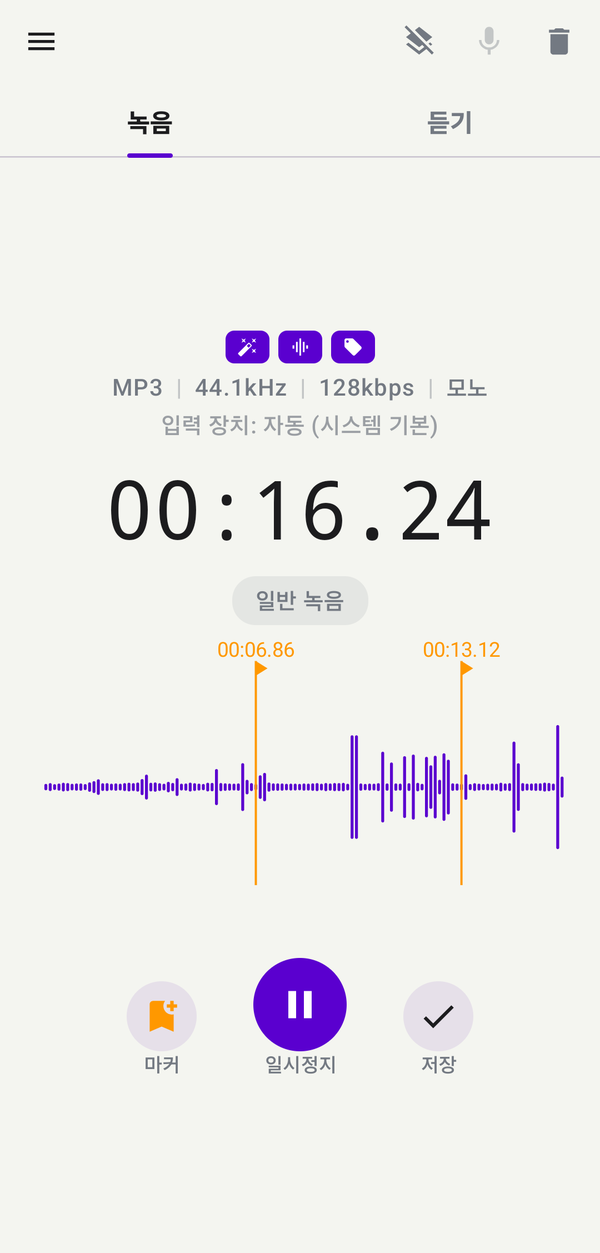
Decisions in a meeting, the exam-relevant slide in a lecture, the quotable line in an interview — drop a marker with a label. Afterwards, tag it for classification.
Share a file with markers intact and the recipient lands on the same moment.
Share a file with markers intact and the recipient lands on the same moment.
How to use
Three steps to use markers.
01
Add a marker while recording
From the recorder screen, the notification, the lock screen, or the floating button — hit the marker button to flag the moment.
Turn on the label popup if you'd like to add a short note when you do.
Turn on the label popup if you'd like to add a short note when you do.
02
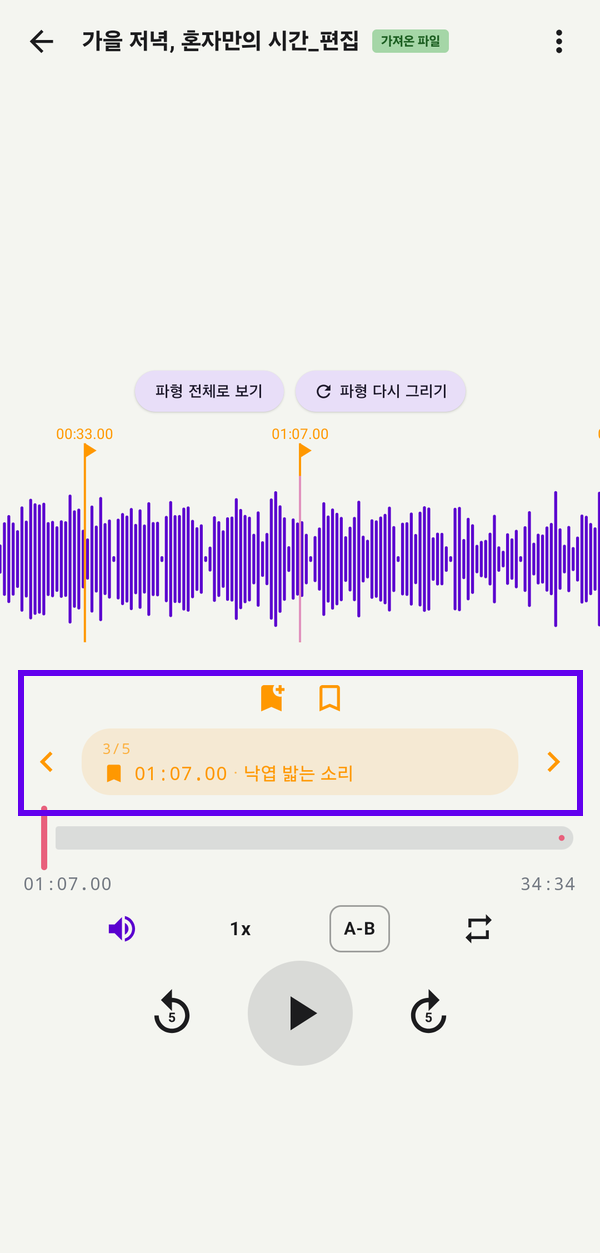
Edit and jump from the player
While playing, drop a marker at the current position or type an exact time. From the marker list, rename labels or move them to a different timestamp.
03
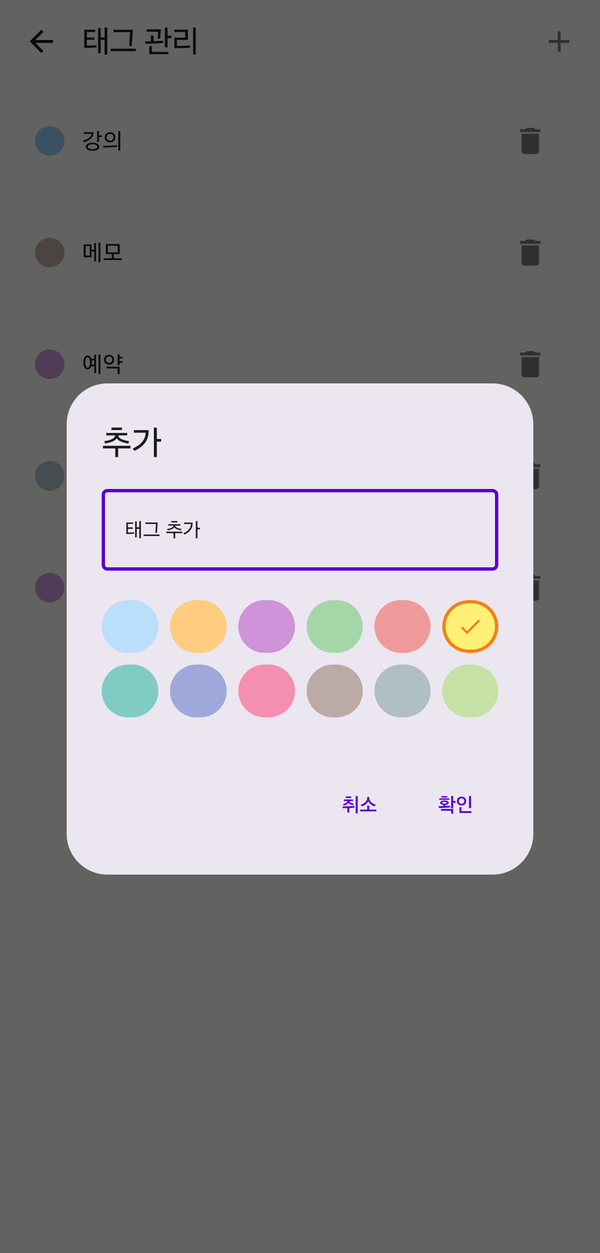
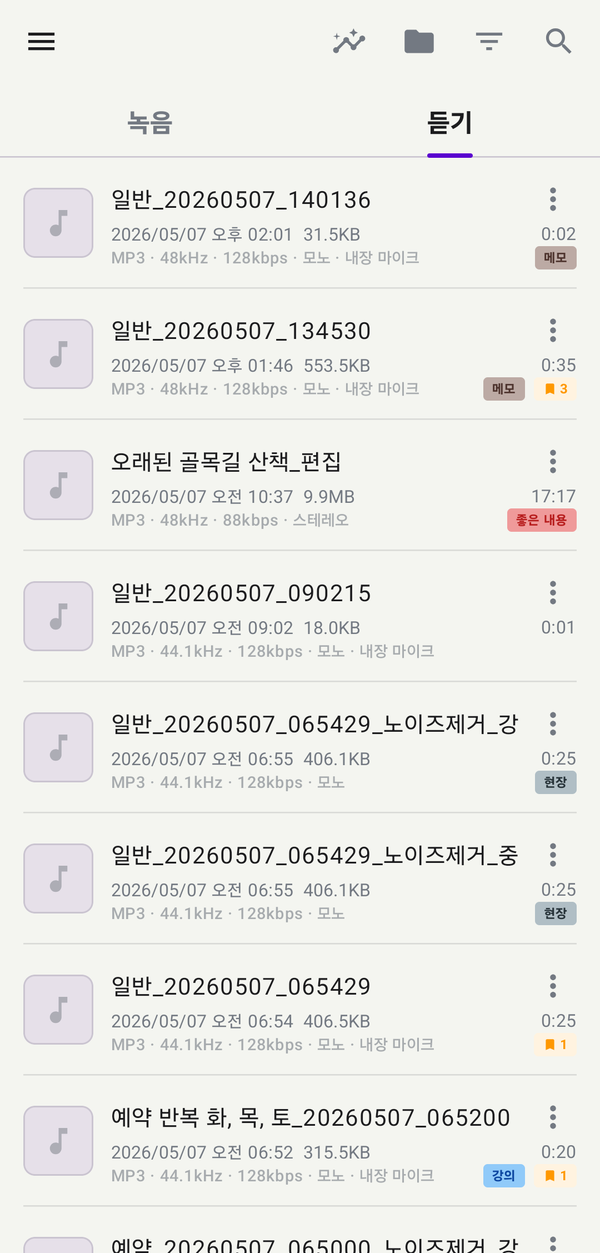
Classify with tags — name and color
Tags carry a name and a color. Set a default tag and every new recording starts classified. Add, edit, or remove tags from the tag manager.
Specs
Marker · tag options
Marker formats
MP3 · WAV · M4A
Add markers from
Recorder · notification · lock · floating
Labels
Optional popup on add · editable later
Tags
Name + color · unlimited + auto default tag
Share
Markers preserved in shared file
Easy to start, easy to keep using.
Download and grant permission once — recording, organizing and backup keep flowing in a way designed for you.